Windows LAPS Intune deployments usually fail in a way that produces no error at all. The policy reports success in the Intune admin centre, the device stays compliant, and the local administrator password simply is not there when somebody opens the device record in Entra ID. Nothing in the console says why. What follows is the diagnosis order, the tenant setting that sits outside Intune entirely, the event IDs that tell you what the device actually did, and the one widely repeated cause that is wrong.
Establish policy precedence before anything else if more than one account protection profile is in play, because an Intune policy conflict decides which value a device applies, and LAPS settings collide as quietly as any others. Every fact below was verified against Microsoft Learn on 28 August 2026.
What a Windows LAPS Intune policy configures, and the two defaults that matter
The policy lives at Endpoint security > Account protection > Create Policy, with the platform set to Windows and the profile set to Local admin password solution (Windows LAPS), per Microsoft’s deployment guidance. It is a thin wrapper over the LAPS configuration service provider, and knowing the underlying values is what makes the failures readable.
| Setting | Values | Default |
|---|---|---|
| Backup Directory | 0 disabled, 1 Microsoft Entra ID only, 2 Active Directory only | 0, which backs up nothing |
| Password Age Days | 1 to 365. Minimum 1 for on-premises AD, minimum 7 for Microsoft Entra ID | 30 |
| Password Complexity | 1 to 8, where 6 to 8 are passphrase forms | 4 |
| Password Length | 8 to 64, and only applied when complexity is 1 to 5 | 14 |
| Administrator Account Name | A string. Blank targets the built-in account by its well known RID | blank |
| Post Authentication Actions | 1 reset only, 3 reset and log off, 5 reset and reboot, 11 reset, log off and terminate processes | 3 |
| Post Authentication Reset Delay | 0 to 24 hours | 24 |
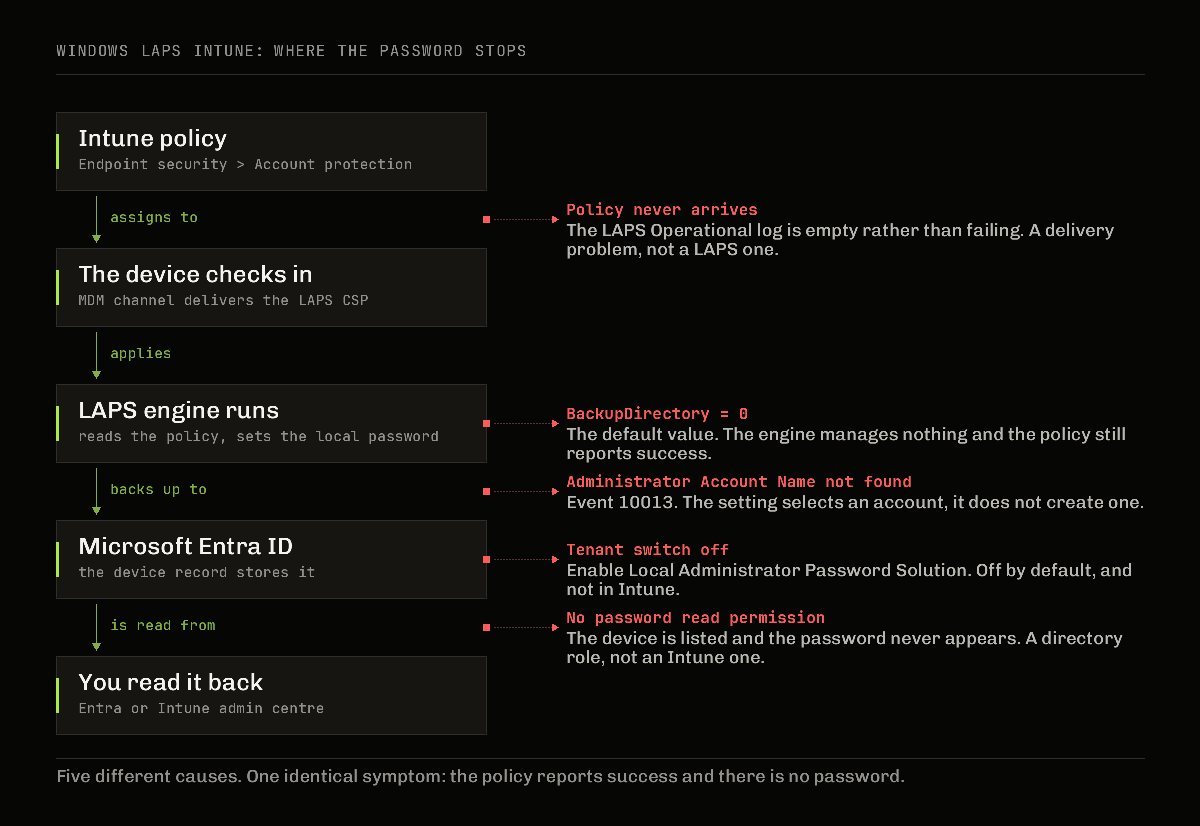
Two of those defaults cause most of the confusion. Backup Directory defaults to disabled, so a profile created and assigned without touching that setting manages nothing and reports success while doing it. And Administrator Account Name does not create an account. It selects one. If the name you type does not exist on the device, LAPS has nothing to manage and says so only in the event log.
The automatic account management settings, which can create and randomise a managed account for you, are a separate matter: Microsoft states they require Windows 11, version 24H2 or later. On a mixed fleet they are not a general answer yet.
The tenant setting that is not in Intune
For Microsoft Entra joined devices the password has nowhere to land until the directory is told to accept it. That switch is not in the Intune admin centre at all. It is in the Microsoft Entra admin centre under Identity > Devices > Overview > Device settings, named Enable Local Administrator Password Solution (LAPS), and it needs the Cloud Device Administrator role to change. Microsoft notes it is required for Entra join scenarios and not required for hybrid join.
This is the single most common cause of a clean-looking deployment with no passwords in it, and it is invisible from the place people go to look. The Intune policy is correct, the assignment is correct, the device is compliant, and the tenant is refusing the backup.
Licensing is the part people over-buy. Microsoft lists the requirement as Microsoft Intune Plan 1 and Microsoft Entra ID Free. There is no P1 or P2 requirement for LAPS itself, whatever an account team suggests. Supported join types are Entra joined, Entra hybrid joined and on-premises domain joined. Workplace joined devices are not supported.
The Windows LAPS Intune failure modes, in the order worth checking
1. Backup Directory was never set
Check the policy before the device. A value of 0 means disabled, and 0 is the default. This costs nothing to rule out and rules out a surprising share of cases.
2. The tenant switch is off
Covered above. Check it second because it is the next cheapest to verify and it invalidates everything downstream.
3. The edition claim that sends people the wrong way
Search this problem and you will be told, repeatedly and confidently, that Windows LAPS requires Enterprise or Education and does not work on Pro. Microsoft’s own supported platforms statement does not draw that line. It draws the line at version and patch level: Windows 11 23H2 and later, or any other client that has received the 11 April 2023 update or later, covering Windows 11 22H2, Windows 11 21H2 and Windows 10. The platform documentation then states plainly that all supported editions of those platforms have been updated with Windows LAPS, including long term servicing channel editions.
So an unpatched or out of support build is a real cause. Pro, by itself, is not the cause the internet says it is. If you have already spent an afternoon planning an edition upgrade on the strength of a forum answer, check the build number first.
4. The target account does not exist or is disabled
Leave Administrator Account Name blank and LAPS uses the built-in account identified by its well known RID. Type a custom name and LAPS expects to find that account already created by something else, a provisioning package, a script, a configuration profile. Estates that disabled the built-in Administrator years ago as a hardening step land here often, and the symptom is identical to every other symptom: no password, no error in the console.
5. The policy never arrived
If the LAPS event channel on the device is empty rather than showing failures, this is not a LAPS problem. It is a delivery problem, and it is diagnosed the same way as any other missing Intune payload. Start with a genuine sync rather than the button that looks like one, and if the device is not checking in at all, work through the sync diagnosis order before touching the LAPS configuration again.
6. You can see the device but not the password
This one is a permissions problem wearing a product problem’s clothes. Reading the stored password requires microsoft.directory/deviceLocalCredentials/password/read. Reading the metadata without the password requires microsoft.directory/deviceLocalCredentials/standard/read. Cloud Device Administrator and Intune Administrator hold what is needed; a custom role that was scoped for device management and never granted the credential read will show the device happily and the password never. Note that Intune role scoping is a separate system from Entra directory roles, so what your scope tags limit has no bearing on this particular gate.
What the event log tells you, and where it lives
The device keeps its own account of this, and it is more honest than the console. The channel is Applications and Services Logs > Microsoft > Windows > LAPS > Operational. The event reference lists the ones worth knowing.
| Event ID | What it means |
|---|---|
| 10003 and 10004 | Policy processing started, then succeeded |
| 10005 | Policy processing failed, with the error code in the event |
| 10022 | Policy configuration details for a Microsoft Entra ID backup |
| 10029 | The password was successfully written to the directory |
| 10013 | The configured local administrator account could not be found |
| 10027 | No acceptable password could be generated, because the LAPS length and complexity policy conflicts with the local or domain password policy |
A small piece of archaeology worth knowing before you go looking: the 10029 event text still reads Azure Active Directory, a name Microsoft retired. If you search the log for Entra you will not find it.
To stop waiting on the refresh cycle while testing, force the client to evaluate its policy:
# Trigger LAPS policy processing immediately instead of waiting for the cycle
Invoke-LapsPolicyProcessing
# Then read the operational channel for the result
Get-WinEvent -LogName 'Microsoft-Windows-LAPS/Operational' -MaxEvents 25 |
Format-Table TimeCreated, Id, LevelDisplayName, Message -AutoSize
Event 10005 with an error code, or 10013, will tell you more in one line than the admin centre will tell you all afternoon.
Three things worth deciding before you assign it
My tenant is a lab with no enrolled devices, so I have not run a Windows LAPS Intune rollout across a production estate and I am not going to invent numbers for one. What the documentation supports, and what the failure pattern above implies, is worth saying anyway.
Set Password Age Days deliberately rather than accepting 30. The Entra ID floor is 7, and the cost of a shorter age is not the rotation, it is the post authentication behaviour. The default post authentication action is 3, reset the password and log the managed account off, after a delay that defaults to 24 hours. That is a sensible security posture and an unpleasant surprise for a technician who signs in with the LAPS password, starts a long job, and finds the session ended a day later. Decide that value on purpose.
Prefer the built-in account over a custom name unless something else in the build is already creating the custom one reliably. The Administrator Account Name setting is a selector, not a factory, and a name that does not exist produces the same silent nothing as a tenant switch left off. Two different causes, one identical symptom, is what makes this feature tedious to debug.
Finally, treat the LAPS operational channel as the primary source and the Intune console as a summary. Every genuinely useful signal in this feature is on the device.
Last verified: 28 August 2026.