
An Intune BitLocker recovery key is not stored in Intune. It lives on the device object in Microsoft Entra ID, and the Intune admin centre only reads it back on request. That single fact accounts for most of the alarm when the console returns No BitLocker key found for this device, because the fault is almost never in Intune. Either escrow never happened, or the directory object that held the key has been deleted. The two causes have different fixes and, more importantly, different deadlines.
Establish policy precedence before anything else if more than one disk encryption profile is assigned, because an Intune policy conflict decides which value a device actually applies, and encryption settings collide as silently as any others. Every fact below was verified against Microsoft Learn on 7 September 2026.
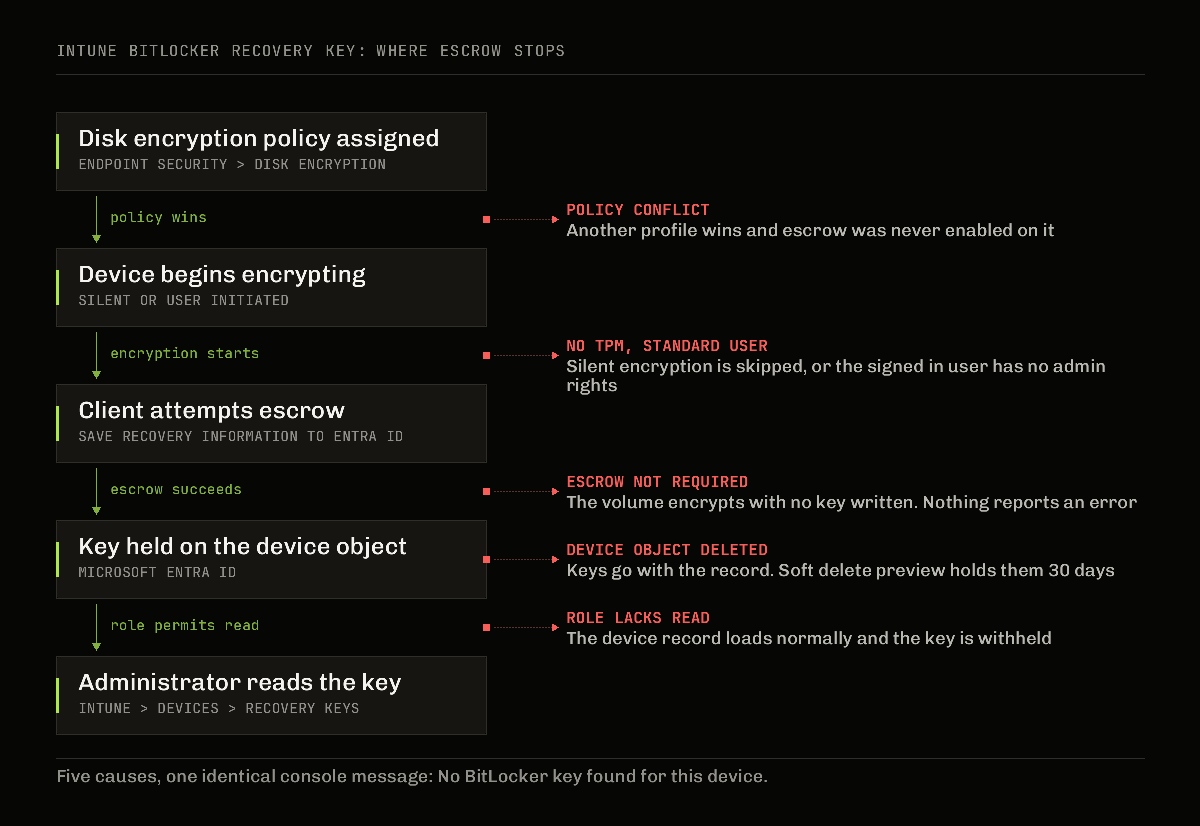
Where an Intune BitLocker recovery key is actually stored
Microsoft’s encryption guidance is explicit that recovery keys are held in Microsoft Entra ID for Microsoft Entra joined devices, and that Intune surfaces three fields when they are present: BitLocker Key ID, BitLocker Recovery Key and Drive Type. When they are absent, Intune displays No BitLocker key found for this device. That message is a statement about the directory, not about the disk. The volume can be fully encrypted and healthy while the console shows nothing at all.
The destination is decided by whichever policy actually applied, not by which console you happen to be standing in. The Intune disk encryption policy writes to Entra ID, as set out in Microsoft’s guidance on encrypting Windows devices with BitLocker using Intune. The Active Directory route, still in place across a great many domain joined estates, writes to AD DS instead, and the Windows recovery documentation states that Active Directory joined devices store the recovery key in AD DS. A Microsoft Entra hybrid joined device is domain joined as well, so on a fleet encrypted by Group Policy years before Intune arrived, an Intune BitLocker recovery key lookup shows nothing while the 48 digit recovery password sits on the computer object in Active Directory, exactly where it was put. I have not migrated an estate like that myself, so treat it as documented behaviour rather than a war story. It is still the first thing to check on any device older than the tenant’s Intune deployment.
If the drive was never encrypted in the first place, there is no key to find; start with why BitLocker silent encryption is not working.
This device does not have BitLocker keys backed up in Entra ID: escrowing a key that already exists
That message, and the Intune wording of it, means the directory holds no recovery password for the device. If the volume is already encrypted, the fix is not to decrypt and start again. The question is whether the volume carries a recovery password protector at all, because if it does, that protector can be written to Entra ID after the fact. The policy settings in the next section govern what happens before encryption starts, so tightening them now does nothing for a device that has already encrypted without escrow.
- From an elevated prompt on the device, run
manage-bde -protectors -get C:. Microsoft’s manage-bde protectors reference describes it as listing every key protection method on the drive with its type and ID. Look for a Numerical Password entry and note its ID. - If there is no Numerical Password, add one with
manage-bde -protectors -add C: -recoverypassword. A volume protected by the TPM alone has no recovery password to escrow. - Back it up with
manage-bde -protectors -aadbackup C: -id {ID}. The same reference states that the-idparameter is required for-aadbackup. - Check the result in Event Viewer under Applications and Services Logs > Microsoft > Windows > BitLocker-API, which Microsoft’s Intune BitLocker troubleshooting guidance names as the main BitLocker log, then reopen Recovery keys on the device in Intune.
The PowerShell equivalent is BackupToAAD-BitLockerKeyProtector, which Microsoft’s BitLocker module reference describes as saving a recovery password key protector to Microsoft Entra ID, selected by its ID. The script below does the same steps in one pass, and it is the shape I would put into an Intune remediation script running in system context. Detection on the device can only prove the local half, that a Numerical Password protector exists. Whether the key reached Entra ID is answered by the Graph query further down this page, not by the device.
# Escrow every recovery password protector on C: to Microsoft Entra ID.
# Adds one first if the volume is protected by the TPM alone. Run elevated.
$mount = 'C:'
$rp = (Get-BitLockerVolume -MountPoint $mount).KeyProtector |
Where-Object KeyProtectorType -eq 'RecoveryPassword'
if (-not $rp) {
Add-BitLockerKeyProtector -MountPoint $mount -RecoveryPasswordProtector | Out-Null
$rp = (Get-BitLockerVolume -MountPoint $mount).KeyProtector |
Where-Object KeyProtectorType -eq 'RecoveryPassword'
}
foreach ($p in $rp) {
BackupToAAD-BitLockerKeyProtector -MountPoint $mount -KeyProtectorId $p.KeyProtectorId
}
Two cautions. The cmdlet reference lists no prerequisites at all, not join state, not network, not privileges, so do not read its silence as a guarantee: run it on one device, confirm the key appears, then scale. And I have not run this against a fleet, because my lab has no enrolled devices. The commands are documented; how they behave across a few thousand machines is not something I have observed. If rotation is already configured, the BitLocker key rotation remote action covered at the end of this page is the other route, because it produces a fresh recovery password rather than relying on the old one.
The three settings that decide whether a key ever arrives
The policy lives at Endpoint security > Disk encryption > Create Policy, with the platform set to Windows. Three settings between them determine whether a key reaches the directory and whether it can later be rotated.
| Setting | Value | What it decides |
|---|---|---|
| Save BitLocker recovery information to Microsoft Entra ID | Enabled | Whether the client attempts escrow at all. Left alone, nothing is written and nothing complains. |
| Store recovery information in Microsoft Entra ID before enabling BitLocker | Required | Whether encryption is allowed to proceed when escrow fails. This is the setting that makes a missing key impossible rather than merely unlikely. |
| Client-driven recovery password rotation | Enable rotation on Microsoft Entra joined devices, or Enable rotation on Microsoft Entra ID and hybrid joined devices | Whether rotation works, including the BitLocker key rotation remote action. Microsoft lists all three of these settings as prerequisites for rotation, alongside Windows 10 version 1909 or later, or Windows 11. |
The middle row carries the whole argument. If escrow is enabled but not required, a device that cannot reach the directory at the moment it starts encrypting will encrypt anyway, and the result is a protected volume whose recovery password exists only on that volume. Nobody is notified. The device stays compliant. The gap is discovered months later by whoever needs the key.
The failure modes
Five causes produce a near identical symptom, and the order below is the order worth working through.
The signed in user is not a local administrator. Microsoft’s BitLocker troubleshooting guidance for the admin centre gives the status text directly: The user logged into the device does not have admin rights. For Microsoft Entra joined devices the documented remedy is to set Allow standard users to enable encryption during Autopilot to Yes. This is the most common cause on a standard user build, and it looks nothing like an encryption problem in the console.
Silent encryption had no usable TPM. The same guidance separates the two paths cleanly. Silent encryption requires a TPM, version 1.2 or 2.0, that is unlocked, with UEFI firmware for version 2.0 devices. User enabled encryption does not require a TPM, though Microsoft describes one as highly recommended. A device that fails the silent path quietly falls out of scope rather than reporting an error worth reading.
Two policies disagree. Endpoint security disk encryption profiles, endpoint protection templates and the settings catalogue can all write BitLocker values. Where they disagree the device applies one of them and the console tells you very little about which. Resolve precedence first, then force a check-in rather than waiting on the refresh cycle: the same diagnosis order applies here as when a forced Intune sync is mistaken for a fix.
The key went to Active Directory. Covered above, and worth ruling out early on any hybrid joined estate, because it is the one cause where nothing is broken and no remediation is needed.
Your role can see the device but not the key. This one is genuinely misleading, because the device record loads normally and only the key is absent. It is a permissions boundary rather than a data problem, and it is covered in the next section. The same shape appears with local administrator passwords, where a Windows LAPS deployment shows the device and never the password for exactly this reason.
The newsletter
Free PDF: the Intune troubleshooting field guide
Subscribe and get the free 8-page Intune troubleshooting field guide (PDF), then new fixes about twice a month. From a Microsoft MVP.
Reading the key, and who is allowed to
From Intune, go to Devices > All devices, select the device, and under Monitor select Recovery keys, then Show Recovery Key. From the Microsoft Entra admin centre the key appears in the device details, again behind Show Recovery Key. Either way, Microsoft’s device management documentation confirms that selecting Show Recovery Key generates an audit log entry under the KeyManagement category. Treat that as a feature. It is the only record that a key was disclosed and to whom.
The built-in roles Microsoft lists as able to view recovery keys are Cloud Device Administrator, Helpdesk Administrator, Intune Administrator, Security Administrator and Security Reader, plus the device owner. Global Reader appears on the Graph reference for the same operation. Note what is not on that list: a custom device management role assembled from device read permissions will show the record and withhold the key, which is the fifth failure mode above.
Owner self-service is controlled separately, by a tenant setting named Restrict non-admin users from recovering the BitLocker key(s) for their owned devices. If that is on, a user who has the device and the right to it still cannot retrieve the key, and every lockout becomes a service desk call. That is a defensible choice, but make it deliberately rather than discovering it during an incident.
At scale, read the keys through Microsoft Graph rather than the portal. The least privileged permission is BitlockerKey.ReadBasic.All, and the key value is withheld from the default response.
# The key property is not returned by default. Ask for it explicitly.
GET https://graph.microsoft.com/v1.0/informationProtection/bitlocker/recoveryKeys/{keyId}?$select=key
When the device object has already been deleted
This was the unrecoverable case, and it is the reason the same question keeps reaching Microsoft Q&A: the machine will not boot, the key was in Entra ID, and somebody had already cleaned up the stale device record. Deleting the object deleted the keys with it.
That has changed. Device soft delete in Microsoft Entra ID, currently in preview, moves a deleted device into a suspended container instead of removing it, and hard deletes it only after 30 days. Microsoft’s statement on what survives is unambiguous: recovery keys stored with the device remain accessible to administrators, and after restoration they continue to be available, including for self-service recovery by the registered owner. Microsoft Entra joined, hybrid joined and registered devices are all in scope. Devices without a recognised trust type, secure VMs with managed identities, non-persistent VDI instances and printers are not.
Two caveats matter more than the feature does. There is no portal experience during the preview, so restoration runs through Microsoft Graph or PowerShell, and only Cloud Device Administrators, Intune Administrators and Global Administrators can restore. And the only endpoint Microsoft documents for finding these objects is on beta.
# Connect with Cloud Device Administrator, Intune Administrator or Global
# Administrator, then read the soft deleted container. Beta only for now.
Connect-MgGraph -NoWelcome
Invoke-MgGraphRequest -Method GET -Uri 'https://graph.microsoft.com/beta/directory/deletedItems/microsoft.graph.device' |
Select-Object -ExpandProperty value |
Select-Object displayName, id, deletedDateTime
Here is the part the documentation does not tell you. The Microsoft Graph v1.0 reference for restoring a deleted directory object lists eleven supported types, and device is not among them. The soft delete article says restoration is done through Graph or PowerShell; the v1.0 restore reference does not yet acknowledge the type. I have not restored a soft deleted device, so I am not going to claim a working command line for it. What I will say is that a recovery path you have never exercised is not a recovery path, and this one is worth testing on a throwaway device while it is nobody’s emergency.
The deletion route matters too. Retiring a device is not the same as deleting its directory object, and the ordering decides what is left behind, which is the same trap described in the difference between an Intune wipe and a retire. A reset that returns a device to service is different again: Autopilot reset leaves the device record in place, so the key survives with it.
What I would do differently
My tenant is a lab with no enrolled devices, so I have not run a BitLocker estate through a hardware refresh and I am not going to invent recovery statistics for one. What the documentation supports is worth stating anyway.
Set Store recovery information in Microsoft Entra ID before enabling BitLocker to Required and accept the consequence. It means a device with no line of sight to the directory will not encrypt, which will be reported as a fault by somebody. The alternative is silent, undetectable escrow failure, and an unencrypted device you know about is a better position than an encrypted device whose key does not exist.
Audit for missing keys on a schedule rather than on demand. Every Intune BitLocker recovery key gap is discovered by the person who needs the key, which is the worst possible moment to find out. A weekly Graph query comparing encrypted devices against devices with a stored key turns an incident into a ticket.
Do not let soft delete change your deletion hygiene. It is a preview, it has no portal, its restore path is under-documented, and it lasts 30 days. It is a safety net, not a policy. Treat stale device cleanup with the same care as before and be quietly glad the net is there.
Finally, rotate keys deliberately. The remote action exists at Devices > All devices > the device > BitLocker key rotation, and it needs Help Desk Operator, Endpoint Security Manager, or a custom role carrying the Remote tasks / Rotate BitLockerKeys permission. Rotation after a key has been disclosed is the whole point of the audit entry mentioned earlier. Disclosure without rotation just means more people know the password.
Last verified: 7 September 2026. Escrow section added and verified 27 October 2026.